Outlook AI Assistant: How to Clear Your Inbox Faster Without Losing Control (2026)

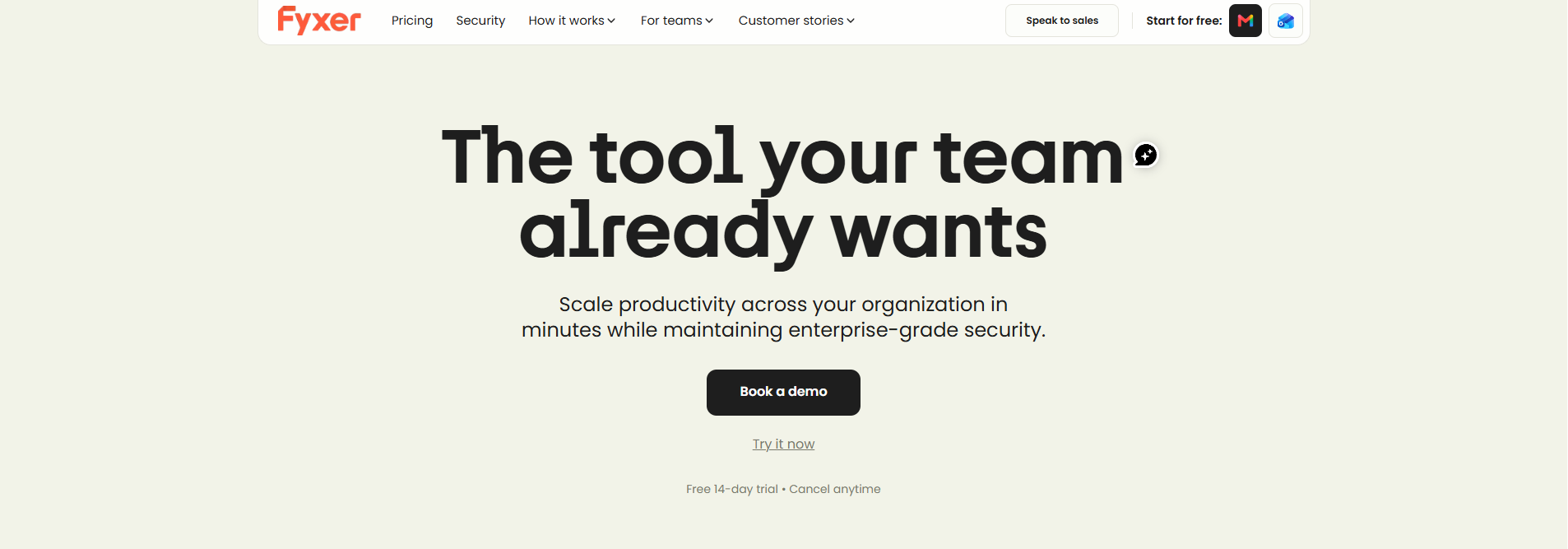
Your Outlook inbox is probably full of requests, follow-ups and routine replies that eat into your day. Fyxer is an AI email assistant for Outlook that organizes incoming messages, drafts replies in your writing style and tracks conversations still waiting for an answer, while you decide what gets sent. This guide shows you how to set up a controlled workflow and how it compares with Microsoft Copilot. If you are still comparing tools, our Superhuman vs Fyxer breakdown covers the differences in pricing and approach.
Start with 20% off for 3 months.
What does Fyxer do as an Outlook AI assistant?
Fyxer connects to Outlook to categorize messages, identify conversations requiring attention, and create context-aware draft replies. Rather than replacing Outlook with another email client, it adds organization and writing assistance to the inbox you already use. Its dashboard provides settings and additional tools, but your everyday message review can remain in Outlook.

The practical distinction is between generating text and preparing work for your decision. A standalone AI email reply generator needs you to supply context and move the result back into a message. Fyxer can prepare drafts using the conversation and your historical writing patterns, so you start with something to review rather than a blank reply. Fyxer's drafting documentation explains how this works.
For someone evaluating an AI assistant in Outlook, the most useful test is not whether it writes an impressive sample email. Test whether it helps you identify the right conversation, answer accurately, and remember what remains unresolved. Treat those as separate jobs when deciding whether the subscription earns its place.
Think of Fyxer as preparation support. You remain responsible for commitments, sensitive decisions, recipients, and the final send.
Want to see this workflow in your own inbox? Try Fyxer with 20% off for your first 3 months, then run the trial steps below on your real messages.
Start with triage, not faster typing

Before turning on every available feature, decide what your inbox should show you. A useful target is a visible work queue: messages needing a decision, information worth reviewing, and lower-priority material that can wait. Avoid making an empty inbox the only measure of success.
Fyxer separates incoming messages into categories such as To respond, FYI, and Marketing. Its organizer works in the background within Outlook, helping distinguish actionable conversations from lower-priority traffic. Category names and behavior can vary with your setup.
Use those categories to establish a review order:
- Actionable conversations: Look for requests, promised deliverables, customer questions, and decisions only you can make. Deal with these before polishing routine acknowledgments.
- Information to review: Read updates that affect your work, even when no reply is expected. An FYI message can still change a deadline or project assumption.
- Lower-priority traffic: Batch newsletters and promotional messages into a separate review session. Keep anything essential visible until you trust the classification.
- Exceptions: Check messages outside the action queue during your trial. Look specifically for important conversations that landed somewhere unexpected.
Make accuracy your first goal. If sorting creates a cleaner view but makes you nervous about missing work, keep more categories visible while testing. Introduce separation gradually rather than moving everything out of sight immediately.
Draft replies that sound like you without inventing commitments
Fyxer's drafting documentation describes using your writing patterns and email-thread context to prepare replies. You can adjust custom tone instructions in the dashboard, and drafts appear in your Drafts folder or within the conversation when conversation view is enabled. Fyxer does not automatically send those drafts.
That makes Fyxer worth considering as an Outlook AI email writer when your main frustration is repeatedly composing similar responses. Still, sounding like you is only one part of a good reply. The message also needs to say what you actually know and intend.
Give the writer boundaries, not just a tone
During your trial, use explicit writing preferences wherever instructions are supported. "Professional" leaves room for interpretation; "brief, direct, and friendly, with no exaggerated enthusiasm" is more useful. Include boundaries around information the assistant should not assume.
For example, try instructions such as:
Keep replies concise. Answer the sender's questions directly. Do not promise delivery dates, discounts, or availability unless the conversation supports them. Flag missing information instead of guessing.
Then review a varied sample: a familiar colleague, a new client, a complaint, and a scheduling request. Do not judge the writer only on easy acknowledgments. The difficult messages reveal whether you can edit efficiently or need to rewrite most of the draft.
Review facts before polishing phrasing
Use a consistent review sequence: recipient, requested action, factual details, commitments, then tone. Check dates and attachments against the source message rather than trusting a fluent sentence. If you are declining a request, make sure the draft does not soften your answer into an accidental agreement.
For example, "I'll check whether Friday is possible" is different from "I'll deliver on Friday." Keep uncertainty when uncertainty is accurate. Your objective is a faster correct reply, not simply a shorter editing session.
Follow-ups and scheduling need different controls
Fyxer can track sent conversations that have not received a reply and prepare follow-up drafts after a configured waiting period. Its help documentation on follow-ups places those drafts under labels such as Awaiting reply or To follow up, depending on your setup. You can adjust the waiting period in the dashboard's draft settings.

As an AI follow-up email generator, that is useful for proposals, document requests, and unanswered questions. Choose timing based on the relationship rather than making every message equally urgent. A routine supplier question and a sensitive customer escalation deserve different treatment.
Before sending a reminder, check whether the situation changed elsewhere. Perhaps the recipient answered by phone, a colleague took over, or the request is no longer relevant. Treat the prepared follow-up as a prompt to decide, not an instruction to chase.
Calendar automation is a separate permission
Fyxer's AI scheduling assistant can use connected calendars to suggest availability and provide booking links. Someone using your scheduling link can book a slot, with invitations and confirmations handled automatically. That is different from automatically sending an ordinary drafted email reply.
Set meeting hours and buffers before sharing a booking link. Test it with a colleague, including a different time zone if that reflects your normal work. Check that the offered times respect the working day you actually want, not merely every empty space in your calendar.
Keep scheduling assistance disabled or narrowly configured until you understand the result. A good calendar integration should support your availability boundaries, not turn all unscheduled time into meeting capacity.
How can you use Fyxer without losing control?
Use Fyxer to organize messages and prepare responses, while retaining a deliberate review step before sending. Configure calendar booking, meeting attendance, and other automated workflows separately instead of assuming one approval setting controls everything. Fyxer's documentation on access distinguishes unsent reply drafts from bookings made through scheduling links.
It helps to separate three automation levels when evaluating any AI Outlook assistant:
| Level | What you delegate | What you retain |
|---|---|---|
| Manual assistance | Ask for help on a selected message | Choosing the message, reviewing the output, and sending |
| Automatic preparation | Allow categorization and eligible draft creation | Checking priority, correcting drafts, and deciding what goes out |
| Autonomous execution | Permit a supported action under defined conditions | Setting its scope, monitoring outcomes, and stopping it |
These are evaluation categories, not a claim that Fyxer offers a universal "autopilot" switch. Fyxer explicitly says it does not send drafted replies on your behalf; scheduling links can confirm bookings according to your settings.
For your first week, keep the scope deliberately small. Start with one inbox, review categorized messages daily, and leave meeting automation off unless you need it. Expand only after you can explain what the assistant does, what it cannot do, and where you inspect its work.
Write down your non-negotiables before testing: no unreviewed client commitments, no sensitive mailbox connection without approval, and no calendar access merely because it appears during setup.
Set up Fyxer for an Outlook workflow you can inspect
A careful setup does not need to be complicated. The purpose is to establish a predictable workflow before connecting additional accounts or enabling more features. Use the following sequence as a trial plan rather than a promise that every account has identical screens.
- Check organizational permission. Before connecting a work mailbox, confirm that your organization permits the integration. Ask your administrator to review the requested access if approval is required.
- Use a consistent Fyxer AI login. Fyxer says signing in with a different Google or Microsoft identity can create a separate account with separate settings and billing. Keep the original identity for dashboard access.
- Connect email and calendar intentionally. Fyxer documents these as separate connections. Connect the calendar when you want meeting-related drafts or scheduling, rather than assuming email setup covers both.
- Inspect draft and category settings. Check that draft replies and categorization are enabled when you want them. Enable conversation view if you want drafts visible within their threads.
- Test fresh incoming conversations. Fyxer's drafting guidance says automatic drafts are not generated retroactively for messages received before setup. Do not judge the connection solely by an old unanswered thread.
- Add other inboxes cautiously. Fyxer documents connecting additional Gmail or Outlook accounts through Settings → Integrations on eligible plans. Confirm current plan eligibility before relying on multi-inbox coverage.
For a Fyxer AI Outlook trial, choose a representative stretch of work. Include routine questions, scheduling requests, and messages you would normally file without replying. Avoid testing only during an unusually quiet afternoon.
Keep a short exceptions log. Record missed action items, drafts with unsupported promises, and messages filed somewhere surprising. That list gives you something concrete to improve, or a clear reason not to expand the rollout.
Privacy requires more than a "no training" headline

Fyxer states that third-party AI providers cannot train their own models on your data. However, its own private-model training is a separate matter: the company's help documentation on AI training says that setting is on by default, with an opt-out available. Do not interpret the third-party restriction as a blanket promise that your content is never used for training.
According to that documentation, you can opt out under Dashboard → Settings → Account, and administrators can opt out an organization. Fyxer says opting out prevents future training use while preserving personalized features such as drafts in your voice. It also says data already incorporated into built models cannot be removed from those models.
Review the choice before connecting sensitive correspondence. Ask your organization which settings are required, rather than choosing based only on convenience. Personalization and model training are different uses of information, so evaluate them separately.
Fyxer also publishes security information and provides a Trust Center for more detailed review. Use those materials as a starting point for your organization's assessment, not as a substitute for checking your particular requirements.
Before connecting a work inbox, establish:
- Allowed content: Which mailboxes and information categories may the assistant process?
- Access scope: What email, calendar, and account permissions are requested?
- Retention and deletion: What happens to stored content when access is revoked or the service ends?
- Visibility: Who can view shared notes, recordings, or workspace content?
- Incident ownership: Who pauses the integration and contacts support if something looks wrong?
An Outlook AI email assistant should fit your information-handling rules. If those rules remain unresolved, pause the rollout rather than treating a successful connection as approval.
How much does Fyxer AI cost in 2026?
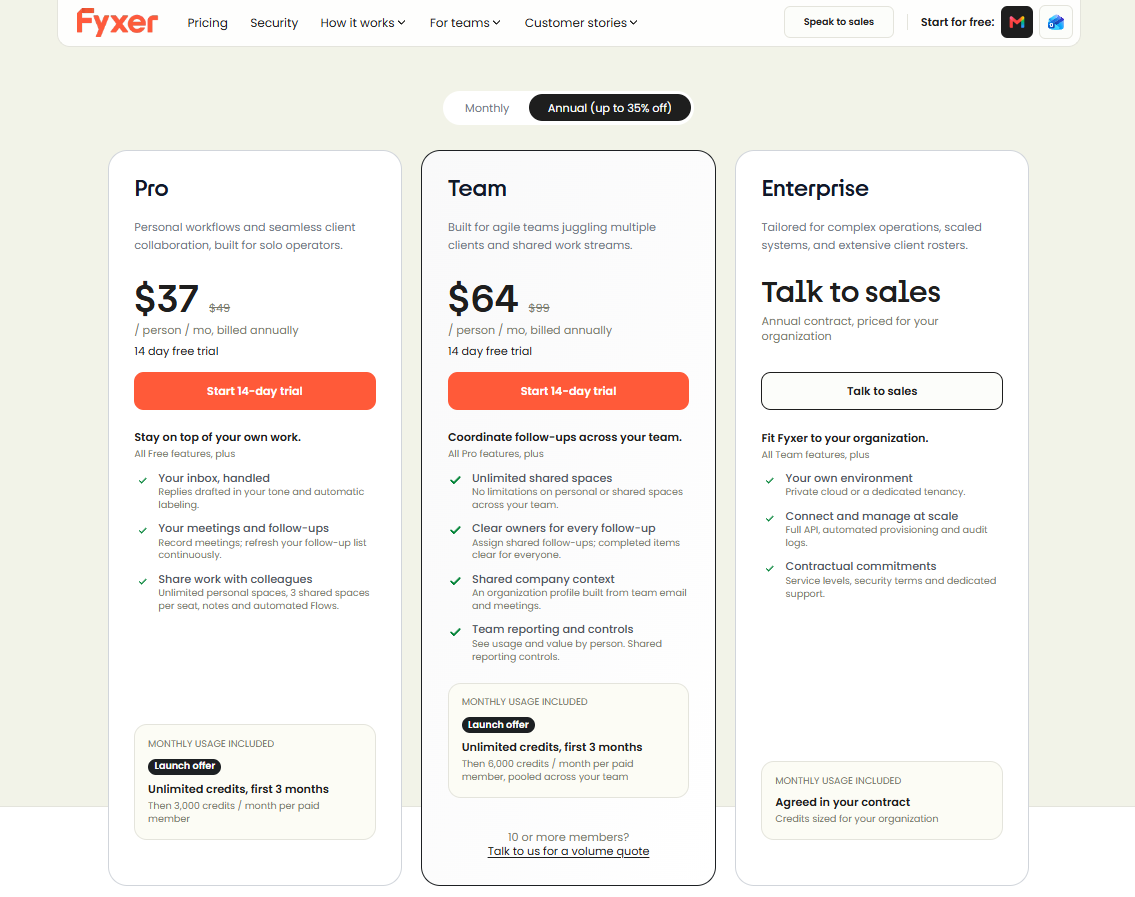
Fyxer's live pricing page, checked for this guide, lists Pro at $49 per person monthly, or $37 per person per month billed annually. Team is $99 monthly, or $64 per person per month billed annually; Enterprise is quoted separately. Through our link, you get 20% off for 3 months. On the monthly Pro price, that brings it to about $39 instead of $49. Check the final total at checkout before you confirm. Claim your 20% discount here.
Fyxer AI pricing has changed, so an older Fyxer AI review discussing Starter and Professional may describe legacy plans. Fyxer's documentation on plan changes says existing customers can currently retain their previous plan or move to updated plans. Compare the plan available to you, not just the price mentioned in an older article.
The live page also lists a Free plan and a 14-day trial. Free does not include automatic reply drafting or inbox sorting, so searching for an "AI email assistant free" does not necessarily lead to the complete inbox workflow described here.
Usage is another consideration. Fyxer documents credits for activities including sorting, Chat, recordings, and Flows, with a launch offer of unlimited credits for the first three months on Pro and Team. Ask how your expected workload fits the allowance after that offer ends.
Assess value using your own trial results. Compare time spent reviewing and correcting with time spent composing and sorting manually. Include the extra checking you still need; do not count every generated draft as time saved.
Fyxer versus Copilot: choose the workflow, not the label

The best AI Outlook assistant for you depends on the bottleneck you want to remove. Keep the comparison narrow: automatic preparation in your existing inbox, on-demand help with particular threads, or broader work across your organization. Start with the tools already approved and available to you.
Microsoft's current documentation on Copilot in Outlook describes capabilities including thread summaries, drafting, coaching, prioritization, and supported triage actions. Availability depends on account, subscription, and Outlook environment; its documented mailbox limitations include scenarios restricted to Exchange Online. Avoid assuming every Outlook account receives the same features.
Use this decision framework:
| Your main requirement | What to test first |
|---|---|
| Replies prepared before you open messages | Test Fyxer's automatic drafting on eligible incoming conversations. |
| An Outlook AI summary of a long discussion | Test Copilot's thread summarization where available. |
| Less manual sorting | Compare the actual category or triage workflow available in each tool. |
| Several email accounts | Verify provider support and plan eligibility account by account. |
| Strict approval boundaries | Test reply review, calendar permissions, and automated actions separately. |
Fyxer documents automatic reply preparation, while Microsoft documents a Summarize or Summary by Copilot option within supported Outlook conversations. These are different workflows, so test them against different needs rather than treating the feature names as interchangeable.
For Outlook email AI, the deciding factor should be the work you can reliably stop doing manually. Do not buy overlapping tools without identifying which repeated task each one removes.
Read Fyxer AI reviews through the lens of your own inbox
This Fyxer AI review is a documentation-based assessment, not a hands-on benchmark. That distinction matters: feature availability establishes what you can test, while your own trial establishes whether it works well enough for your messages. No article can determine how much correction your particular correspondence will require.
When reading other Fyxer AI reviews, look for the reviewer's mailbox type, plan, testing date, and examples of mistakes, not just praise for polished drafts. Prefer evidence about missed requests, editing effort, and follow-up reliability. Those details tell you more than an unsupported promise of hours saved.
Build your own small scorecard:
- Did important messages remain easy to find?
- Were drafts accurate enough to edit rather than rewrite?
- Did follow-ups identify conversations worth reopening?
- Did scheduling respect your availability boundaries?
- Were privacy settings and ongoing costs acceptable?
Use the same questions throughout the trial. A convincing result is a workflow you trust enough to repeat, with limitations you can explain and manage.
Clear the queue while keeping the decisions
Fyxer is worth evaluating when you want an AI email assistant to prepare inbox work without giving up your final review. Start with categorization and drafts, inspect the exceptions, and add scheduling only when its boundaries are clear. The goal is fewer unresolved conversations, not simply fewer messages on screen.
Start your trial and get 20% off for 3 months through The Raven Stack partner link. Confirm the discount and its duration at checkout before you subscribe.